
MediaTray app
Tono Audio Priority
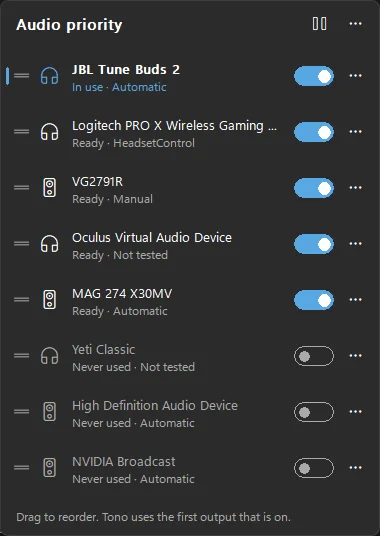
Put your audio outputs in order; the first one that is on becomes the default.
Vitool Box and its apps run on Windows 10 and 11. Open this page on your PC to install. Or download the installer anyway · 2.3 MB.
Overview
Earbuds out of the case? Sound goes there. Headset on? It goes to the headset. Nothing else? The monitor. Tono always picks the first output on your list that is actually on, including wireless USB headsets, and never fights you when you choose one yourself.
Windows only switches outputs when the one in use disappears, and then to whatever it likes. Tono lives in the notification area, does nothing until something connects or disconnects, and puts the sound where you expect it.
What it does
Priority list
Drag your outputs into order. The first one that is on becomes the default.
Follows what Windows sees
Bluetooth earbuds going into their case, USB headsets unplugged, monitors turned off.
Wireless USB headsets
Headsets that stay connected while switched off can be asked directly through HeadsetControl, downloaded only if you want it.
Your choice wins
If you, a game or SteamVR pick another output, Tono leaves it until the next device connects or disconnects.
Quiet notifications
A small note next to the clock says why it switched. It never takes focus and stays away during full-screen games.
Careful by default
Waits a moment before switching so Bluetooth hiccups do not make it jump, and does nothing when in doubt.
Install
With Vitool Box Recommended
Install Vitool Box, open it and turn Tono on. It installs every app with a switch and keeps them all up to date.
 Get it with Vitool Box: downloads the Vitool Box installer, then turn Tono on with a switch
On its own
Download
TonoSetup.exefrom the latest release and run it.- Per-user install, no admin rights needed.
- Tono starts right away and opens its list, starting with the output you are using now. It starts with Windows from then on.
Changelog
All releasesv1.0.4Latest
v1.0.4 on GitHubOfficial and free 💸
- 🏷️ Trademarks: new TRADEMARKS.md. The code stays MIT, but the Tono name and logo are not part of the license: forks need their own name and icon, and nobody may sell Tono as the official app
- 💸 Free app notice: the installer's license page now says that Tono is free and only published at github.com/VitomDev, so anyone who was charged for it knows they were scammed
- 🪪 About Tono: now reminds you that Tono is free
Install: download
TonoSetup.exebelow and run it; it upgrades your current Tono and keeps your settings.v1.0.3
v1.0.3 on GitHubIcon back in one piece 🩹
- 🩹 Fixed: after turning off Group my apps' icons in Vitool Box, or quitting Vitool Box, Tono's icon came back blank next to the clock. It now comes back with its usual live icon
Install: download
TonoSetup.exebelow and run it; it upgrades your current Tono and keeps your settings.v1.0.2
v1.0.2 on GitHubFits inside Vitool Box 🗃️
- 🗃️ Grouped icon: when Group my apps' icons is on in Vitool Box, Tono's icon moves inside the Vitool Box icon next to the clock. Click it there to use Tono, right-click it for its usual menu
- 🔁 Without Vitool Box, or with the option off, Tono keeps its own icon exactly as before
Install: download
TonoSetup.exebelow and run it; it upgrades your current Tono and keeps your settings.v1.0.1
v1.0.1 on GitHubKnow where the sound went 💬
- 💬 Small notifications next to the clock when Tono switches output, with the reason (JBL Tune Buds 2 is off, Higher on your list than VG2791R), and when it pauses or resumes
- 🎮 They never take focus or clicks, fade away on their own and stay hidden during full-screen games, presentations and Do not disturb
- ⚙️ Turn them off with right-click on the tray icon → Small notifications
Install: download
TonoSetup.exebelow and run it; it upgrades your current Tono and keeps your list and settings.v1.0.0
v1.0.0 on GitHubFirst release of Tono Audio Priority 🎧
- 📋 Priority list: drag your audio outputs into order; the first one that is on becomes the default output
- 🔌 Follows Bluetooth earbuds, USB headsets and monitors as Windows sees them come and go
- 🎮 Wireless USB headsets that stay "connected" while off can be detected through HeadsetControl, downloaded only if you ask for it and verified by hash
- 🧪 Test each output step by step; anything undetectable can be marked on or off by hand
- 🙋 Your choice wins: if you, a game or SteamVR pick another output, Tono leaves it until the next connect or disconnect
- ⏸️ Pause, a short wait against Bluetooth hiccups, and no change at all when in doubt
- 🔒 100% offline, ~0 CPU while idle
Install: download
TonoSetup.exebelow and run it. Per-user install, no admin rights needed. Windows 10 (1809+) and 11, 64-bit.


