

UtilitiesTray app
Pons WiFi Transfer
Move files between your PC and any phone, tablet or computer over Wi-Fi.
Pons runs on your Windows PC; your phone only needs to open its link to send or receive files. Open this page on your PC to install. Or download the installer anyway · 2.3 MB.
Overview
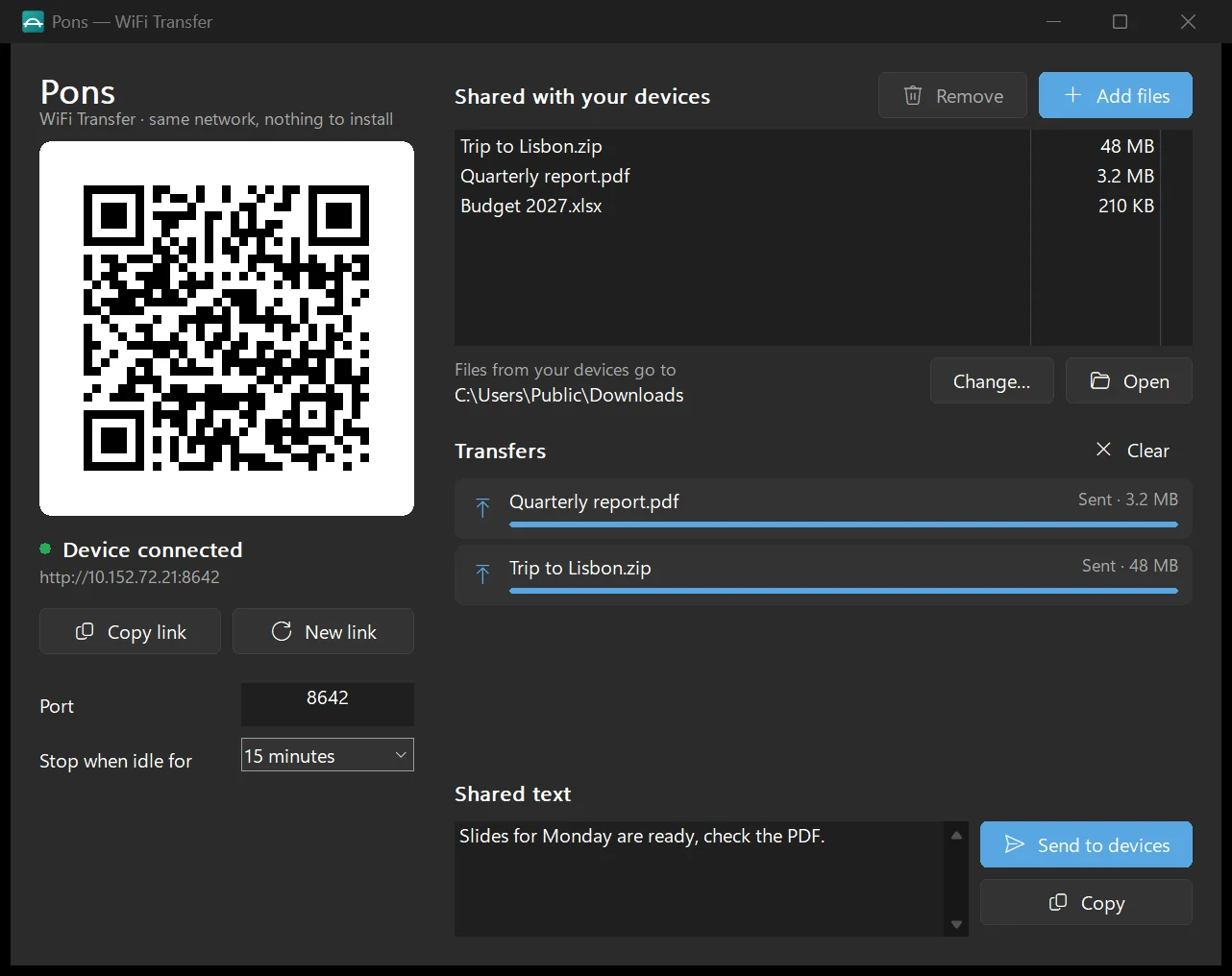
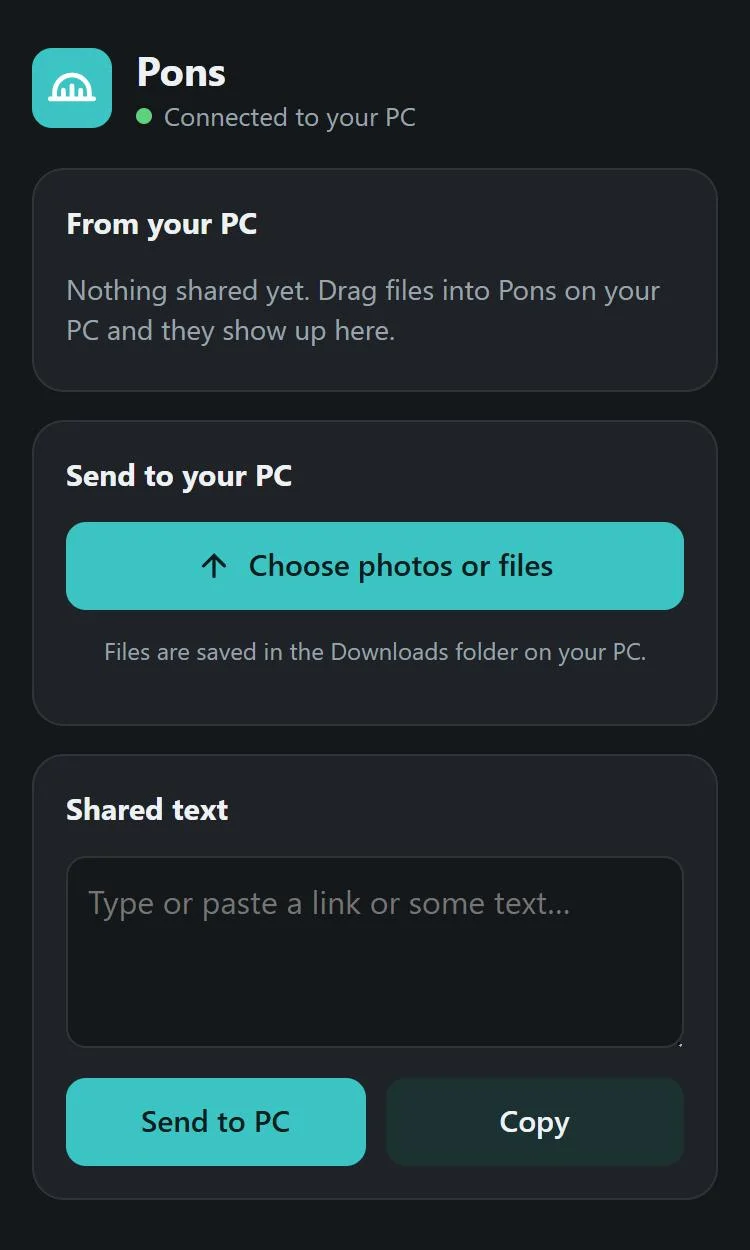
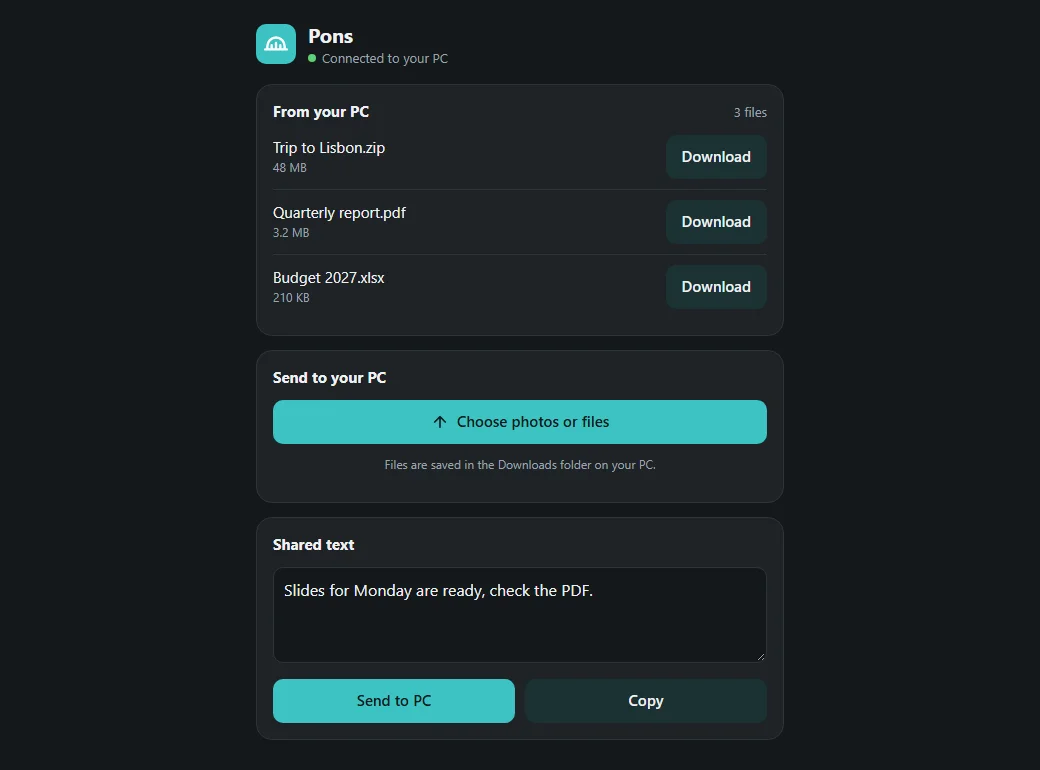
Open Pons, scan its QR code with a phone camera or open the link on another computer, and a simple page lets you download what you dragged into Pons or send photos and files straight to a folder on your PC. Nothing to install on the other device.
Pons is a bridge across your home network. No accounts, no cloud and no app on the other side: everything stays on your local network, and the browser page follows the device’s light or dark theme.
Changed Wi-Fi? Pons notices and shows a new code.
What it does
Scan and go
A QR code with the PC's address opens in any phone camera, on iPhone and Android, or copy the link to another computer.
PC to device
Drag files or a folder into Pons and download them on the other device.
Device to PC
Send several photos or files at once, each with its own progress bar, to Downloads or any folder you choose.
Shared text
Send a link or some text either way and copy it on the other side.
Private by design
Every request needs a random per-session key from the QR code, only devices on your private network can connect, and the server stops when idle.
Keep sharing after closing
Pons can stay in the notification area for up to 4 hours so someone can still download what you shared.
Install
With Vitool Box Recommended
Install Vitool Box, open it and turn Pons on. It installs every app with a switch and keeps them all up to date.
 Get it with Vitool Box: downloads the Vitool Box installer, then turn Pons on with a switch
On its own
Download
PonsSetup.exefrom the latest release and run it.- Per-user install, no admin rights needed.
- The first time Pons starts, Windows Firewall asks whether it may use the network. Allow it on private networks.
Changelog
All releasesv1.1.1Latest
v1.1.1 on GitHubOfficial and free 💸
- 🏷️ Trademarks: new TRADEMARKS.md. The code stays MIT, but the Pons name and logo are not part of the license: forks need their own name and icon, and nobody may sell Pons as the official app
- 💸 Free app notice: the installer's license page now says that Pons is free and only published at github.com/VitomDev, so anyone who was charged for it knows they were scammed
Install: download
PonsSetup.exebelow and run it; it upgrades your current Pons and keeps your settings.v1.1.0
v1.1.0 on GitHubKeep sharing after you close Pons 🕒📤
- 🕒 Keep running in the background: closing the window now asks whether to quit or keep sharing for 15 minutes, 30 minutes, 1, 2 or 4 hours, so someone can still download what you shared. Pons waits in the notification area and quits by itself when the time is up, after letting a running download finish
- 💾 Remember my choice: tick it to skip the question next time, and change it later under When closed at the bottom left of the window
- 🔔 Tray icon while sharing: click it to open Pons again, or right-click for Copy link and Quit Pons. It groups into Vitool Box's icon when grouping is on
Install: download PonsSetup.exe and run it (per-user, no admin), or update from Vitool Box. Your settings are kept.
v1.0.1
v1.0.1 on GitHubNot just for phones anymore 💻📲
- 🖥️ Any device on your network: Pons now speaks of devices instead of a phone. Scan the QR code with a phone or tablet, or use Copy link and open it on a laptop or another PC
- ✏️ Clearer wording: the window, the browser page and the installer use device-neutral texts ("Send to devices", "Device connected", "Scan the code or open the link")
- 🔗 Expired link page: now says to scan the code or open the new link, which also works on computers without a camera
Install: download PonsSetup.exe and run it (per-user, no admin), or update from Vitool Box. Your settings are kept.
v1.0.0
v1.0.0 on GitHubFirst release.
- 📷 Scan the QR code with your phone, no app needed
- ⬇️ Share files from the PC, ⬆️ send photos and files to a folder on the PC with progress
- 📝 Shared text and links both ways
- 🔒 Per-session key, private network only, stops after 15 minutes idle
Download PonsSetup.exe and run it (per-user, no admin). The first time, allow Pons on Private networks when Windows Firewall asks.


